> ## Documentation Index
> Fetch the complete documentation index at: https://docs.nyru.net/llms.txt
> Use this file to discover all available pages before exploring further.
# Reset Password of VDS
1. Go to [Server Panel](https://vds.nyru.net/) (If you are not logged in, check previous step to login)
2. After you logged in successfully, you have to be redirected to [Dashboard page](https://vds.nyru.net/dashboard). Now you have to click **Manage** button of the service which you intent to reset password.
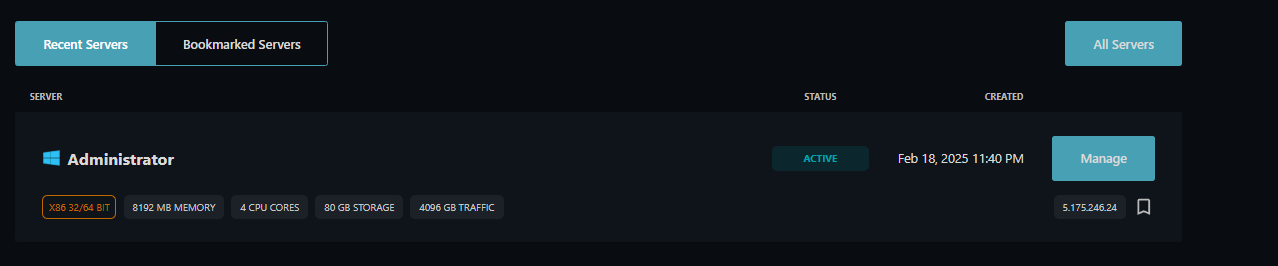 3. After you click, go to **Options**.
 4. Then, scroll down till you see **Root/Administrator Password** title.
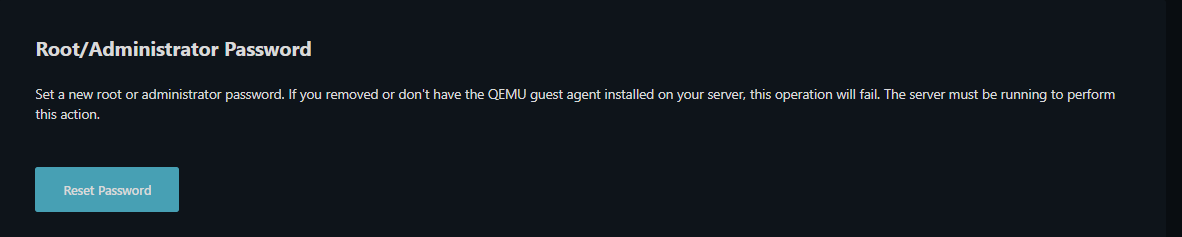 5. Now click **Reset Password** and you will receive a mail that includes new password.
**Note**: Server needs to be running in order to reset password. Server will not be rebooted/shutted down when the reset password is reseted.
5. Now click **Reset Password** and you will receive a mail that includes new password.
**Note**: Server needs to be running in order to reset password. Server will not be rebooted/shutted down when the reset password is reseted.