> ## Documentation Index
> Fetch the complete documentation index at: https://docs.nyru.net/llms.txt
> Use this file to discover all available pages before exploring further.
# Setup OS to VDS
1. Go to [Server Panel](https://vds.nyru.net/) (If you are not logged in, check previous step to login)
2. After you logged in successfully, you have to be redirected to [Dashboard page](https://vds.nyru.net/dashboard). Now you have to click **Manage** button.
 3. After you click, you will need to set Name for the server. This name will be displayed on Server Panel only. You can click **Random** and if you don't know what is Hostname, you can leave it as empty.
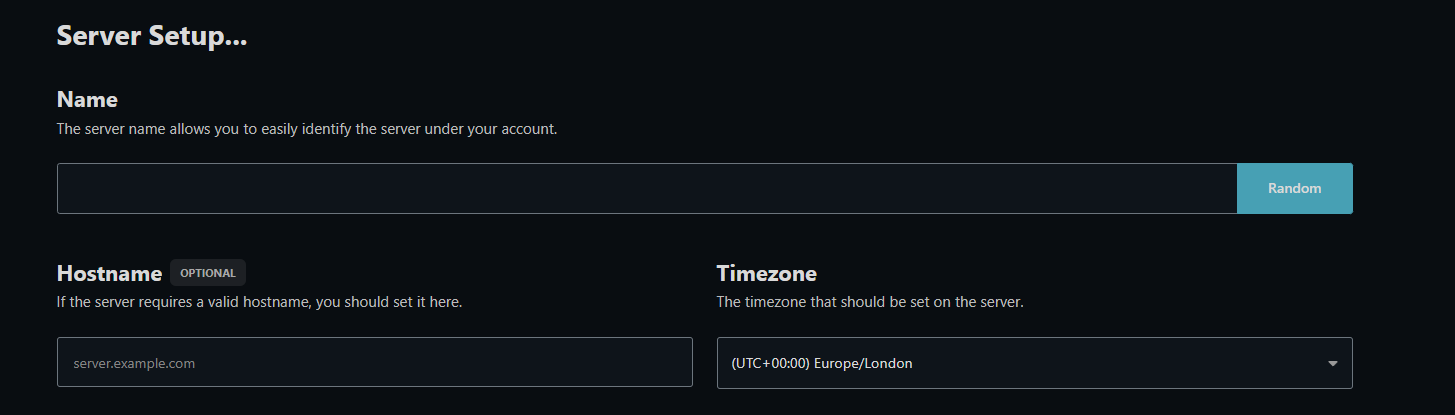 4. After you set Name for the server, you have to **select** one of the listed operating systems.
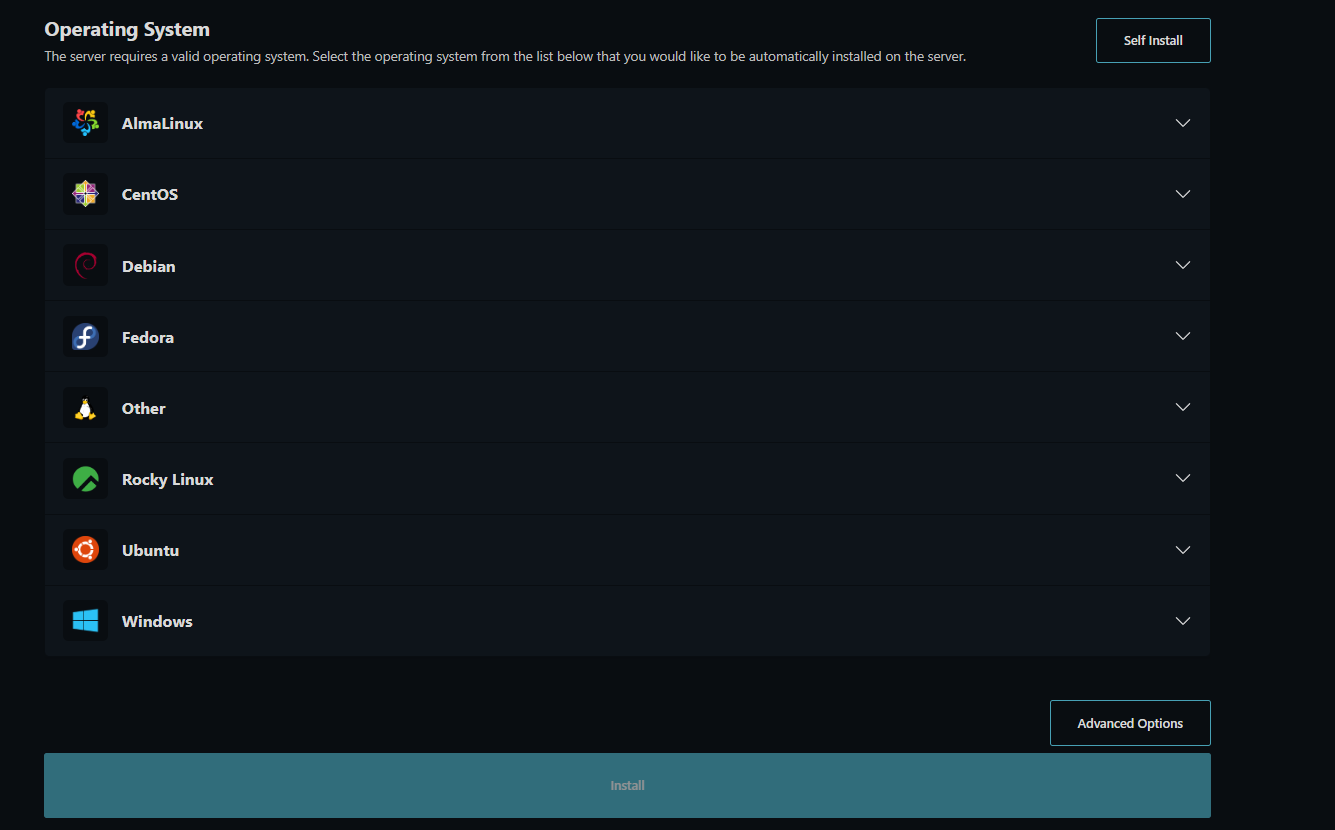 5. After you select operating system for the server, click **Install** button and our system will make it ready for you.
6. Operating System for the server will be set up within 1 minute and you will receive your server information (Username, Password and IP Address) via mail that you are using in our system.
**Note**: Server setup may take up to 5 minutes for some Operating Systems. If it been 5 minutes and you still did not receive any information, please contact with our Support Team.
5. After you select operating system for the server, click **Install** button and our system will make it ready for you.
6. Operating System for the server will be set up within 1 minute and you will receive your server information (Username, Password and IP Address) via mail that you are using in our system.
**Note**: Server setup may take up to 5 minutes for some Operating Systems. If it been 5 minutes and you still did not receive any information, please contact with our Support Team.